
By: Mike Moscato, Systems Engineer/Service Desk Team Lead at IntegraMSP
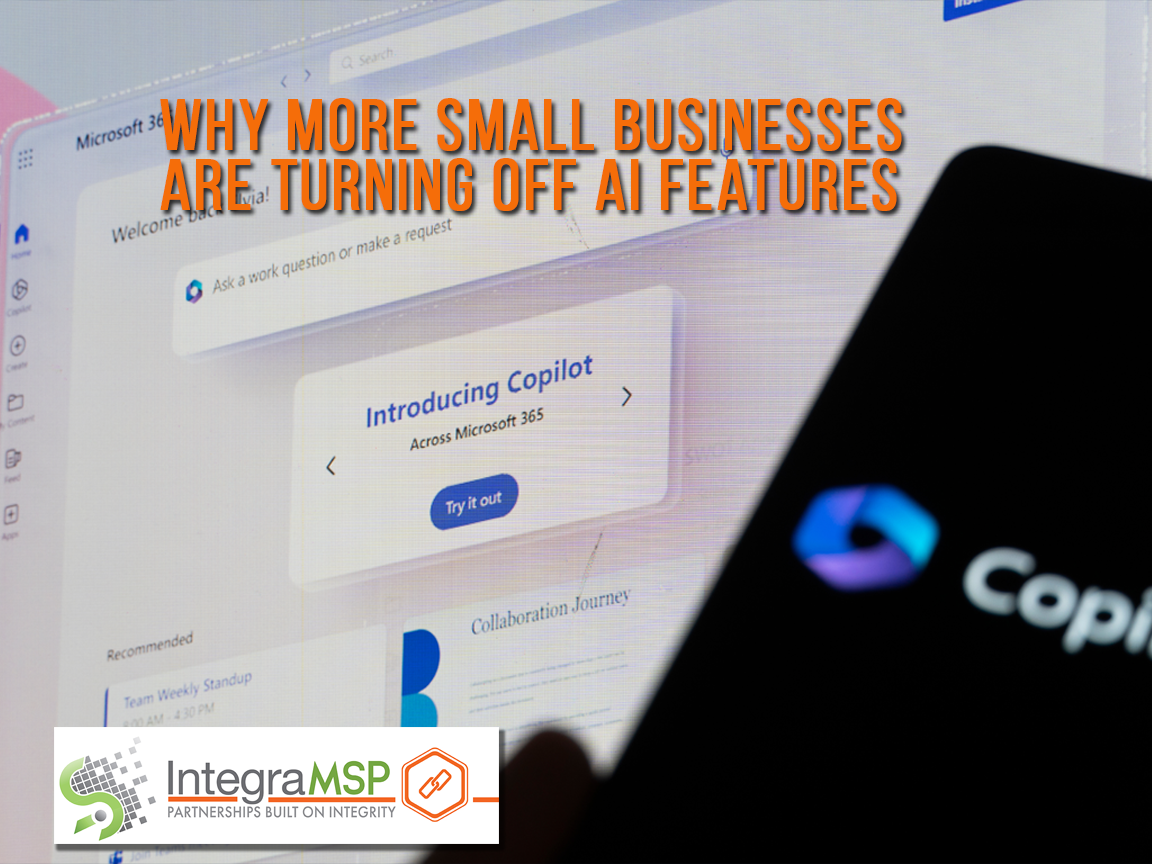
For years, business software focused on speed, reliability, and simplicity. Many business owners simply want software to return to basics; They want their browser to browse, their PDF software to open PDFs, and their email platform to send/receive messages without constant suggestions, prompts, or automated summaries appearing unexpectedly. Then seemingly overnight, artificial intelligence became the centerpiece of nearly every major software platform; Microsoft added Copilot to Office and Windows, Adobe launched AI assistants in Acrobat, Google pushed AI optimization tools into Chrome, and Microsoft Edge even forcibly enabled AI-powered browsing features.
For many small business owners, the rollout has felt less like a helpful upgrade and more like an unwanted renovation. Employees suddenly found new and distracting buttons appearing in Applications they've used for over a decade. Browsers started consuming additional storage space and system resources. For some users, these AI-generated suggestions slow down their workflows instead of improving them.
That does not mean AI tools are inherently bad. Some companies can improve efficiency, assist with repetitive tasks, and save time. But for others, particularly smaller organizations, the rapid rollout of AI integrations can feel overwhelming and forced. The growing backlash is less about rejecting technology and more about demanding choice. Users want the ability to decide when AI belongs in their workflow, not have it enabled automatically after the next software update.
Fortunately, most major software companies still allow users to disable at least some AI-powered tools through settings menus featured directly through the application settings.
Microsoft Office users can disable Copilot individually within Word, Excel, PowerPoint, and OneNote. The process requires opening each application separately, navigating to File > Options > Copilot settings menu. Users can then uncheck the “Enable Copilot” option and restart the application. Note that if you don't see this setting, it could be under File > Account > Account Privacy > Manage Settings and uncheck the box Turn on optional connected experiences. Important Caveat: disabling it in one Office app does not disable it across the entire Office suite, and it must be done for each application.
Outlook uses a slightly different process. Users can locate the “Turn on Copilot” setting in Outlook’s Settings or Quick Settings menu, depending on the device, and toggle it from "On" to "Off". Microsoft currently supports these controls across Windows, Mac, iOS, Android and web versions of Outlook.
Google Chrome users have also raised concerns after reports surfaced about a large AI-related download appearing automatically in newer versions of the browser. According to reports, new Chrome installations (and the most recent May update) now include an “AI Optimization Desktop App” that may consume several gigabytes of storage space. Users can disable the feature by visiting Chrome’s experimental settings page (chrome://flags/) and turning off “Enables optimization guide on device.” While this stops it from downloading, if it is already installed, the user must navigate to C:\Users\<YourUsernameHere>\AppData\Local\Google\Chrome\User Data and delete the folder named OptGuideOnDeviceModel
Microsoft Edge users may have noticed AI features becoming increasingly persistent during updates. The browser now includes Copilot integrations, AI image enhancement features, and sidebar assistants. Fortunately, many of these options can still be disabled manually through the browser’s Settings menu by searching for “Copilot" and toggling any of the "On" switches to the "Off" position.
Adobe Acrobat has also joined the AI race with its “Acrobat AI Assistant.” Users who prefer a simpler experience can disable generative AI features by opening Acrobat Preferences and navigating to the Generative AI section. From there, users can turn off AI Assistant and document summarization features.
While some advanced users may find online tutorials involving PowerShell commands, Windows Registry edits, or Group Policy changes, we caution that these methods can cause unintended problems if performed incorrectly. The safest approach is to stick with the built-in settings menus and contact a member of our professional, trained tech team if deeper removal is needed.
This does not mean AI is going away anytime soon. In fact, software companies are investing billions into making AI the centerpiece of future products. But for now, users still have some control over how much AI they want in their daily workflow. Sometimes the best productivity tool is simply removing the distractions you never asked for in the first place.